Understanding WhatsApp Web: Key Features and Benefits
In today's fast-paced digital world, effective communication is crucial for both personal and professional interactions. One tool that has revolutionized the way we connect is WhatsApp Web. This web-based platform allows users to harness the power of WhatsApp directly from their desktop browsers, making it ideal for multitasking and managing messages efficiently. With its seamless integration with mobile devices, users can enjoy the flexibility of sending messages, making video calls, and sharing media without being tethered to their smartphones. In this article, we will explore the core features, advantages for businesses, user security measures, and practical steps to get started with WhatsApp Web.
The Core Features of WhatsApp Web
WhatsApp Web brings the full functionality of the mobile application to your computer. Here are some of its most significant features:
- Instant Messaging: Send and receive messages in real-time, ensuring you never miss an important conversation.
- Video Calls: Engage in one-on-one or group video calls, transforming the way you connect with friends, family, and colleagues.
- Media Sharing: Share various media formats, including text, images, documents, and videos, all directly from your desktop.
- Keyboard Input: Enjoy the convenience of typing with a physical keyboard, which enhances speed and accuracy compared to mobile typing.
- Real-Time Synchronization: All actions and messages are synchronized between your mobile device and your computer, allowing you to switch seamlessly between the two.
Advantages for Business Communication
WhatsApp Web is not just a tool for personal use; it offers significant advantages for businesses as well. Its features can enhance communication efficiency and customer service:
- Professional Image: Using WhatsApp Web allows businesses to present a more professional front when engaging with clients, especially through quick responses and media sharing.
- Centralized Communication: Manage customer inquiries, support tickets, and team communications from one screen, improving organization and workflow.
- Enhanced Collaboration: Team members can communicate in real-time, share files, and participate in group discussions easily, contributing to increased productivity.
User Security and Privacy Measures
Security is paramount in digital communication, and WhatsApp Web has robust features to protect user data:
- End-to-End Encryption: All messages and calls are secured with end-to-end encryption, meaning only you and the recipient can read or listen to them.
- Privacy Controls: Users can manage their privacy settings directly from their mobile app, including who can see their last seen, profile photo, and status.
- Session Management: Users can view and manage active sessions, ensuring they can log out of devices they are no longer using, particularly on shared computers.
Setting Up WhatsApp Web: A Step-by-Step Guide
Getting started with WhatsApp Web is straightforward. Follow these steps to set up and begin using the platform:
Installing WhatsApp on Your Phone
Before accessing WhatsApp Web, you need to have the WhatsApp application installed on your smartphone. For iOS devices, visit the App Store, and for Android, head to the Google Play Store. After installation, verify your phone number and complete the account setup as instructed.
Accessing WhatsApp Web on Your Browser
Open any compatible web browser such as Chrome, Firefox, Safari, or Edge on your desktop. Navigate to the official WhatsApp Web page to begin the connection process. The platform is compatible with all major desktop operating systems, including Windows, macOS, and Linux.
Connecting Your Devices via QR Code
On your phone, open the WhatsApp application and tap on the three-dot menu in the top right corner (for Android) or the settings icon in the top left (for iPhone). Select "WhatsApp Web/Desktop." The QR code scanner will open. Use your phone to scan the QR code displayed on your computer screen. Once scanned, your WhatsApp account will connect to your desktop, allowing you to use the platform efficiently.
Enhancing Productivity with WhatsApp Web
WhatsApp Web not only allows users to communicate effectively but also enhances productivity through its various features:
Using Keyboard Shortcuts for Efficiency
Keyboard shortcuts can significantly boost your efficiency on WhatsApp Web. Familiarize yourself with these shortcuts to navigate the interface quickly, send messages faster, and manage conversations without touching your mouse:
- Ctrl + N: Start a new chat.
- Ctrl + Shift + ]: Move to the next chat.
- Ctrl + Shift + [: Move to the previous chat.
- Ctrl + E: Archive a chat.
- Ctrl + Backspace: Delete a chat.
Managing Messages and Media Effectively
WhatsApp Web allows users to efficiently manage conversations and share media files. By utilizing the desktop interface, you can easily drag and drop files into the chat window, eliminating the need to navigate through multiple folders.
Group Video Calls for Professional Meetings
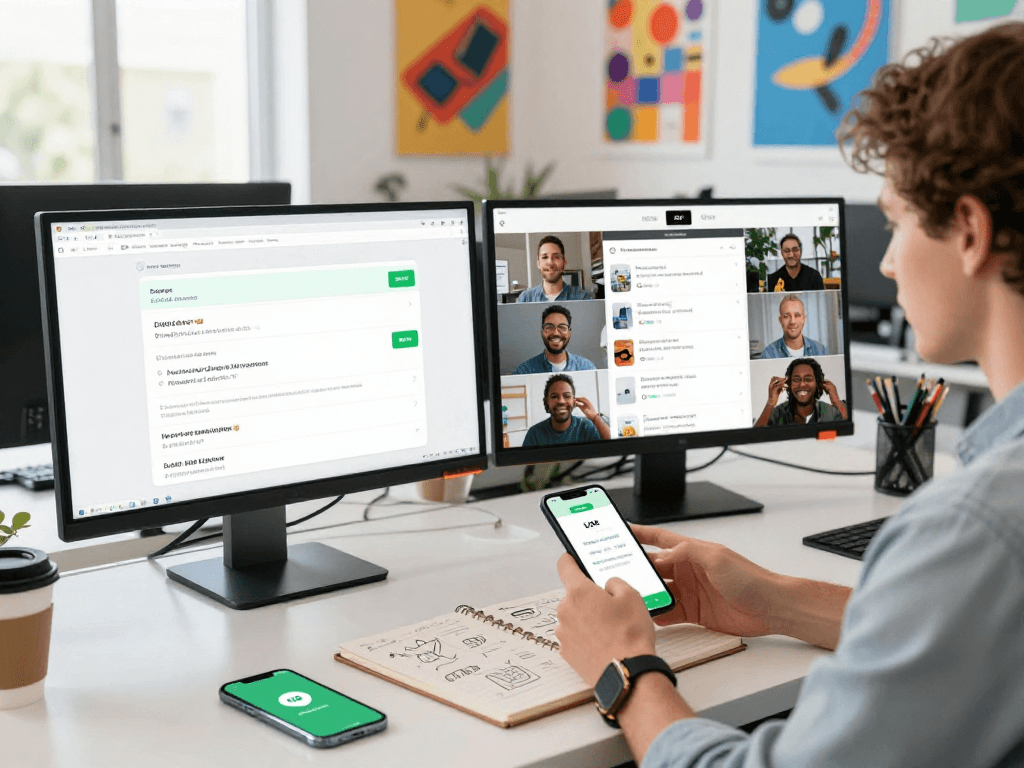
The video call feature on WhatsApp Web allows for group meetings, making it especially useful for remote teams. Users can engage in face-to-face conversations, share screens, and discuss essential topics in real time, enhancing collaboration and decision-making processes.
Common Issues and Troubleshooting WhatsApp Web
While WhatsApp Web is user-friendly, you may encounter some common issues. Here’s how to troubleshoot them effectively:
Connectivity Problems and Solutions
If you experience connectivity issues, ensure that your phone has a stable internet connection. Also, both the mobile app and web interface should be updated to the latest version. Restarting your browser or device may also help resolve connectivity problems.
Security Concerns When Using Public Wi-Fi
Using WhatsApp Web on public Wi-Fi networks can pose security risks. To mitigate these concerns, avoid accessing sensitive messages when connected to unsecured networks. Whenever possible, use a VPN for additional security.
Managing Devices and Sessions Safely
Always log out from WhatsApp Web after use, especially when accessing it from public computers. You can view all active sessions from your mobile app settings and revoke access to any devices you do not recognize or are no longer using.
The Future of WhatsApp Web: Trends and Innovations
As technology continues to evolve, so does WhatsApp Web. Here are some trends and innovations to expect in 2026:
Emerging Features to Expect in 2026
Future updates may include enhanced collaboration tools, integrations with project management applications, and improved AI-driven features for smarter message sorting and response suggestions, making WhatsApp Web an even more powerful tool for users.
Integrating WhatsApp Web with Other Business Tools
Expect to see deeper integrations with other business applications, allowing users to streamline workflows and enhance productivity. This could include compatibility with CRM systems, email platforms, and other communication tools.
Predictions for User Experience Enhancements
Future iterations of WhatsApp Web may also focus on user experience enhancements, such as customizable themes, advanced notification settings, and improved accessibility features to cater to a wider audience.